
Samsung Email
Samsung Electronics Co., Ltd.Productivity
4.4156.05K Reviews
- Version
- 6.2.13.1
- Installs
- 1.00B
- Age Rating
- Everyone
Screenshots
Our Review of Samsung Email
 Analysis by Appyee
I judge an email app less by how many tools it advertises than by whether I can get through a busy inbox without fighting it. Samsung Email is a free productivity app from Samsung Electronics Co., Ltd., designed with Galaxy use in mind. I find its appeal clearest for people who want several accounts in one place, with enough control over alerts and layout to keep work and personal mail distinct.
What to expect when opening the inbox
Samsung Email is not trying to turn email into a project-management system. Its basic promise is a familiar inbox for checking messages, moving between accounts and finding older mail. That makes it approachable if you do not want to learn a new way of handling correspondence just to read and answer it.
The app has a long track record and a broad audience: it has more than a billion installs, an average rating of 4.4 from around 2.5 million ratings, and about 156,000 written reviews. Those figures suggest wide adoption, but they do not tell me whether it fits every provider or workflow. I would still start by connecting the account I use most and checking that messages arrive as I expect.
It is free and rated for Everyone, so trying it does not require a purchase decision. The current version is 6.2.13.1, and it requires Android 10 or later. That requirement matters more than the app’s light, everyday role: if your phone runs an older Android version, this release is not an option for that device.
Setup and Interface
Jumping right into Samsung Email, the setup process is a breeze. Whether you’re using a Samsung device or not, linking your email accounts is straightforward. The app supports multiple accounts, which is a lifesaver if you’re like me and have an email for work, another for personal stuff, and maybe even one for newsletters you never read.
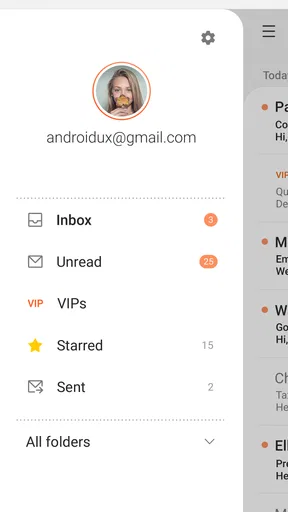
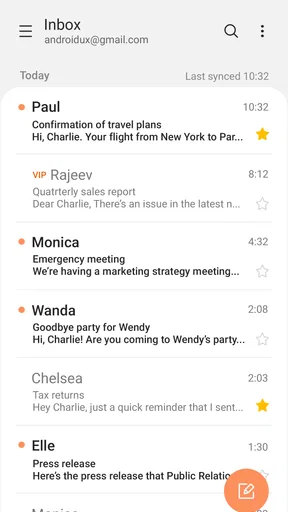
The interface is clean and intuitive. I appreciate how everything feels where it should be. The navigation is smooth, with the main menu providing quick access to all your mailboxes. You won’t find yourself getting lost in a maze of options. Instead, it’s all laid out neatly, making it easy to switch between accounts or folders.
Features That Stand Out
One of the standout features for me is the customizable notifications. You can set different alerts for each account, which means you’ll know whether that incoming email is an urgent work matter or just another sale at your favorite store. It’s these small touches that make a big difference in daily use.
Plus, the app supports various email protocols like POP3, IMAP, and Exchange ActiveSync, so you’re covered no matter what service you’re using. The synchronization is reliable, ensuring your emails are always up-to-date across all devices.
A useful way to make those account controls work in practice is to decide what deserves an interruption before turning on every alert. I would keep a distinct notification for time-sensitive work mail and quiet down an account used for receipts or mailing lists. That small setup choice can make the inbox feel calmer without requiring you to check each account manually throughout the day.
For a typical morning, I might scan the work mailbox first, then switch to personal mail during a break, leaving promotional messages for later. Keeping accounts separate helps me understand where a message belongs before I reply, which is especially useful when a short answer could otherwise go out from the wrong address. If you routinely send from several identities, that extra glance at the selected mailbox is a good habit.
Reliability in everyday use
Email reliability is not just about whether an app stays open; it also depends on account settings and the connection between the app and the provider. Samsung Email’s support for POP3, IMAP and Exchange ActiveSync gives it flexibility across common account setups. Still, synchronization can be affected by a provider’s configuration or a weak connection, so I would not treat a delayed message as proof that the app itself has failed.
If mail stops appearing, my first checks would be the phone’s connection, the account’s sign-in status and whether the issue affects one mailbox or all of them. That quick comparison helps narrow down where to look. A problem isolated to one account points me toward its settings or provider; a broader issue suggests checking the device and connection before removing accounts or changing several options at once.
I also prefer to test a newly added account with a simple message in both directions before relying on it for urgent correspondence. Send a brief email, confirm that it arrives, and reply from the account you intend to use. This is a practical check for anyone setting up a work mailbox on a new phone, and it can catch a mistaken sender choice before it matters.
Security and Privacy
In today’s digital age, security is a major concern, and Samsung Email doesn’t disappoint. The app offers end-to-end encryption for your emails, which gives that added layer of security. There’s also a nifty spam management feature that learns over time, helping keep your inbox clutter-free.
Additionally, you can set up biometric authentication, such as fingerprint recognition, to access your emails. It’s a nice touch, knowing that your emails are protected even if someone else gets hold of your phone.
I would still think of those protections as part of a broader routine, not a reason to ignore account security. A device lock and careful handling of account credentials matter alongside any app-level safeguard. For sensitive work or personal mail, it is worth checking which protections your email provider and organization require rather than assuming one setting covers every risk.
Performance and Speed
Performance-wise, Samsung Email is a champ. Emails load quickly, and the app runs smoothly even when handling large volumes of mail. I haven’t experienced any crashes or slowdowns, which is always a bonus when dealing with productivity apps.
The search functionality deserves a mention too. It’s fast and efficient, allowing you to dig through your emails with relative ease. Whether you’re looking for a specific message from months ago or just trying to recall an attachment, the search tool has your back.
In a heavy-use moment, such as searching for an old booking while standing at a counter, I value being able to look through the inbox rather than scrolling month by month. A good search habit is to use a distinctive sender or phrase when you remember it, then narrow your scan to the likely result. Search is most useful when I treat it as a shortcut to a message, not as a replacement for keeping important correspondence easy to recognize.
I would be cautious about promising identical speed on every phone or account. Large mailboxes, background activity and network conditions can all affect how quickly messages appear, and the phone has to meet the Android 10 minimum. On a supported device, the app’s straightforward purpose should suit routine checking well; if your phone is already strained by other tasks, no email client can make that broader device limitation disappear.
Customizations and Integrations
If you’re someone who loves to tweak and personalize, Samsung Email offers plenty of customization options. You can adjust the theme, choose different layouts, and even customize swipe actions to suit your workflow.
The app also integrates seamlessly with other Samsung services and apps, which can be particularly handy if you’re using a Samsung device. But even if you’re not, the app plays well with other third-party apps, making it a versatile choice.
Custom swipe actions are worth setting deliberately rather than accepting a gesture you might trigger by accident. I would choose an action that matches what I do most often, then use it on a few low-stakes messages until it feels natural. This is a small workflow improvement, but it can make processing routine mail quicker while reducing the chance of moving or discarding a message unintentionally.
Compared with using separate provider apps, a single client can make account switching feel more consistent and keep several inboxes together. The trade-off is that people who depend on a provider’s distinctive tools may prefer that provider’s own app. Likewise, someone who wants email tightly tied to calendars, tasks or team collaboration may be better served by a broader work suite. Samsung Email makes most sense when the priority is handling email itself, not managing an entire workday from one screen.
It is also a reasonable choice for someone who uses a Galaxy phone and wants an email client that sits naturally alongside Samsung’s environment. If you use another Android device, the app can still be worth considering, but I would compare its feel with the email client already installed before moving every account. A familiar default may be better if it already handles your mail and notifications the way you want.
Who will get the most from it
I would recommend it most readily to people with a few standard email accounts who want separate inboxes, adjustable alerts and a familiar layout. It can suit a freelancer who keeps client and personal mail apart, or a household user who wants to check several addresses without opening a different app for each one. The practical benefit is less app-hopping, not a dramatic change to how email works.
I would hesitate to recommend it as the only answer for someone whose organization mandates a particular client, or for a user who relies heavily on specialized collaboration tools. In those cases, compatibility and required features matter more than a clean inbox. If you are unsure, connect one non-critical account first, explore the folders and notification behavior, and decide whether the workflow feels right before making it your default.
In conclusion, if you’re in the market for a reliable email client, Samsung Email is definitely worth checking out. It combines functionality with ease of use, wrapped up in a sleek package that doesn’t overwhelm. Whether you’re a casual email user or someone who lives in their inbox, this app has something to offer.
So, why not give it a try? You might just find it’s the email app you’ve been waiting for.
Verdict
Strengths of Samsung Email
- User-friendly interface for easy navigation.
- Supports multiple email accounts seamlessly.
- Highly customizable notification settings.
- Integrated calendar for scheduling.
- Strong security features for privacy.
Limitations of Samsung Email
- Limited integration with third-party apps.
- Occasional syncing issues with some accounts.
- No dark mode option available.
- Lacks advanced email filtering options.
- Can be resource-heavy on older devices.
Other Releases by Samsung Electronics Co., Ltd.
View All
Samsung Calendar
Productivity4.1

Samsung Browser
Communication3.6

Samsung Music
Music & Audio3.8

SmartThings
Lifestyle4.6
Similar Picks in This Category
View All
Google Calendar
Google LLC4.6

Google Drive
Google LLC4.3

Google Assistant
Google LLC3.9

Microsoft OneDrive
Microsoft Corporation4.6
Samsung Calendar
Samsung Electronics Co., Ltd.4.1

Microsoft OneNote: Save Notes
Microsoft Corporation4.6
You May Also Like
View All
Frequently Asked Questions
What features does Samsung Email offer compared to other email apps?
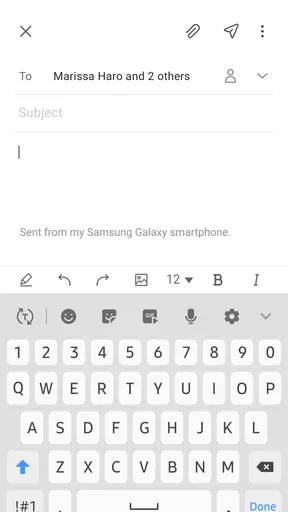
Samsung Email provides a robust set of features including support for multiple email accounts, encryption for enhanced security, and seamless integration with Samsung devices. It also offers customizable notifications, a rich text editor, and calendar synchronization, making it a versatile choice for both personal and professional use.
Is Samsung Email compatible with non-Samsung devices?
Yes, Samsung Email is compatible with a variety of Android devices, not just Samsung ones. While it is optimized for Samsung devices, users with different Android phones can still enjoy its features, though certain functionalities may be more seamlessly integrated on Samsung products.
Can I use Samsung Email for work-related emails?
Absolutely. Samsung Email supports Microsoft Exchange ActiveSync, allowing users to access work emails, calendars, and contacts securely. Its encryption and security features make it a reliable choice for managing work-related communications. However, check with your IT department to ensure compatibility with your organization's system.
How does Samsung Email handle spam and junk mail?
Samsung Email includes robust spam filtering capabilities that help keep your inbox clean. Users can mark emails as spam, and the app learns over time to better identify and filter unwanted messages. Additionally, you can customize the spam settings to suit your preferences for increased control over your inbox management.
Is Samsung Email easy to set up for beginners?
Samsung Email is designed with user-friendliness in mind, making it easy for beginners to set up. The app guides you through a simple setup process, allowing you to add multiple email accounts with minimal hassle. Its intuitive interface ensures that even novice users can navigate and manage their emails efficiently.
